How to trade with Hummingbird
Hummingbird Trading offers a complete suite of FX and Cryptocurrency trading tools for your mobile device
Get familiar with the Hummingbird Trading app
Navigating the app
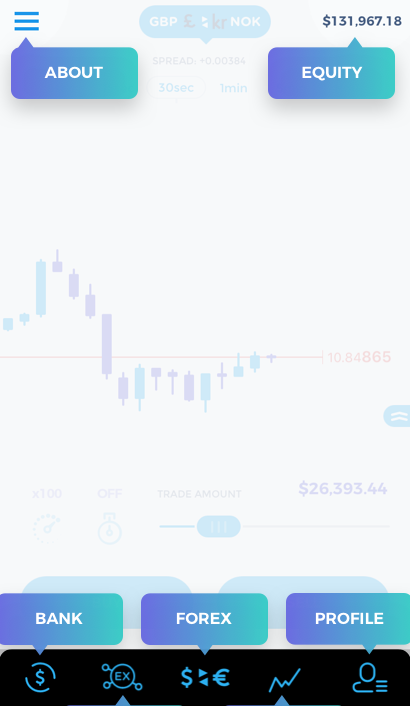
The Hummingbird Trading app offers 7 primary features with will follow you throughout the interface:
- Cryptocurrency Exchange
- Forex Trading Interface
- Open FX Positions
- Bank
- Profile & Settings
- Total equity balance
- About menu
How to trade cryptocurrencies on Hummingbird
Crypto Exchange - Main Menu
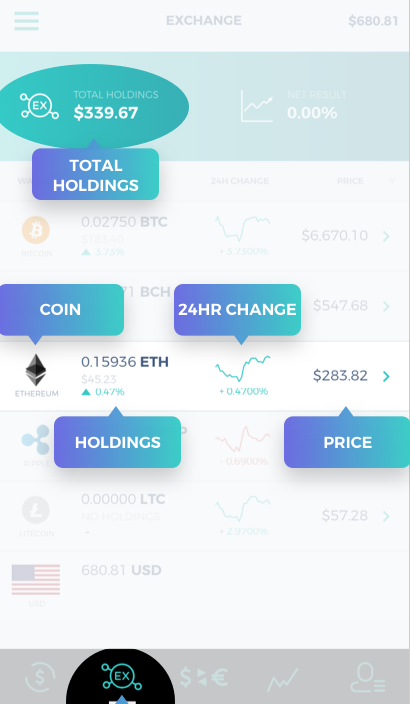
When you first navigate to the cryptocurrency exchange, you will be taken to the main menu, where you will see a list of all cryptocurrencies available to trade on Hummingbird. Each cryptocurrency shows how much you currently hold in that asset, the 24hr % change, and the current price. To trade or view more information on a crypto asset, simply tap on the desired coin and you will be taken to the exchange screen.
Exchange Screen
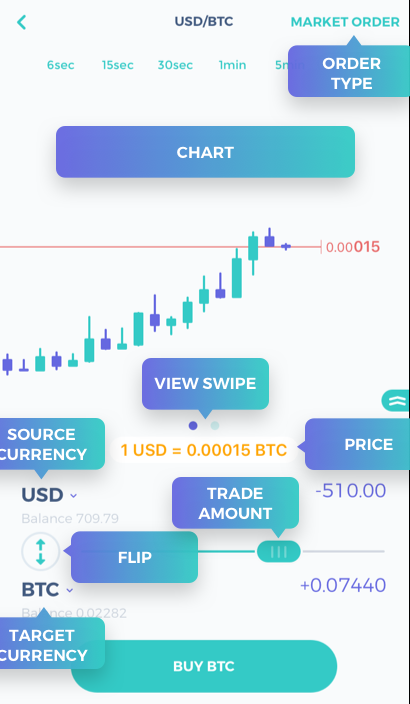
When you select a currency to trade, you will be taken to the exchange screen. Here you can quickly set up an order and execute your trade. Main features include:
- ORDER TYPE: Tap here to switch between Limit and Market orders.
- CHART: Shows the change in price over time. Tap to add indicators, and pull right to show more data.
- VIEW SWIPE: Swiping to the left or right switches the trade view between the Order Book and Trading Chart.
- PRICE: Current price (Market Orders).
- SOURCE CURRENCY: The currency you are selling. Tapping here opens a list allowing you to change the source currency.
- TARGET CURRENCY: The currency you are buying. Tapping here opens a list of other currencies you can buy using the same source currency.
- FLIP: swaps the source currency and the destination currency, essentially changing the direction of the trade.
- TRADE AMOUNT: Slide this bar to enter the amount you wish to put in the trade.
- Tap the button at the bottom of the screen to execute your trade.
Order book
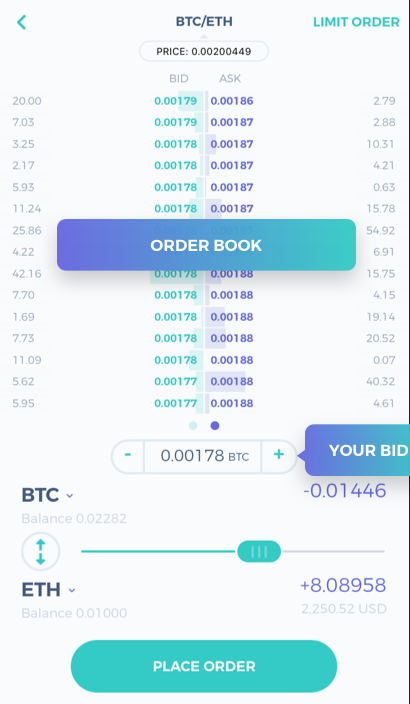
By swiping left on the VIEW SWIPE, you can switch to the order book. Essentially, the interface works in the same way as with market orders, however with a few additional features, when placing Limit orders.
- ORDER BOOK: Shows all open orders by Bid & Ask prices and order size. Tapping on a price in the order book will prefill your bid with that amount.
- YOUR BID: The price you are willing to pay to complete your order. You can use the buttons on either side of the bid price to adjust it up or down. Alternatively, tapping on the price will allow you to manually enter your bid.
How to trade forex on Hummingbird
Forex trading interface - Trade creation screen
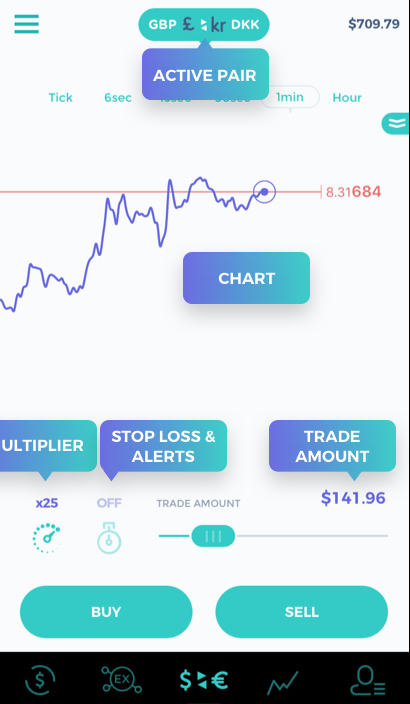
When you tap on the FX trading icon, you will be taken to the Trade Creation screen. This is where all of the action starts, and where you will set up your trades. Here is a list of the main features.
- ACTIVE PAIR: shows the active currency pair. Tapping here takes you to the Market screen
- THE CHART
- MULTIPLIER: current multiplier (leverage amount). Tapping here allows you to change it.
- STOP LOSS/ALERTS: current stop loss or alert. Tapping here allows you to change it.
- TRADE AMOUNT: USD amount you will place into your trade.
- BUY: opens a long position.
- SELL: opens a short position.
Setting up your trade: Step 1
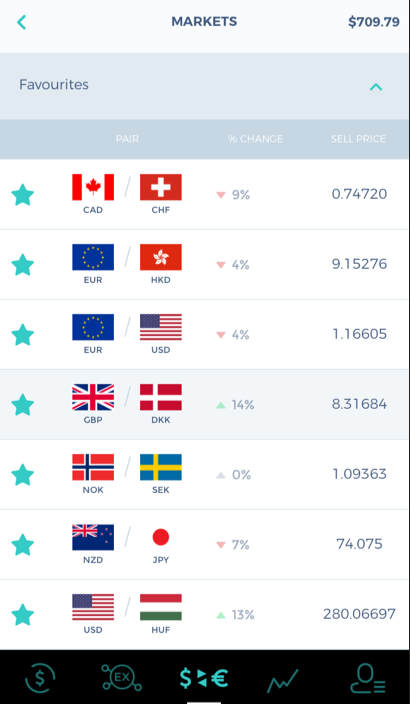
To set up a trade, first you will need to select the currency pair you want to trade. To do so, tap on the Active currency pair icon. This will open the Markets screen.
The Markets screen contains lists of all the currency pairs available on Hummingbird. The pairs are divided into categories: Trending pairs, Favorites, Cryptocurrencies, Majors, Minors & Exotics. To trade any of the pairs, simply tap the pair you want to trade, and you will return to the Trade Creation screen, with the selected pair active.
Step 2: Reading the chart
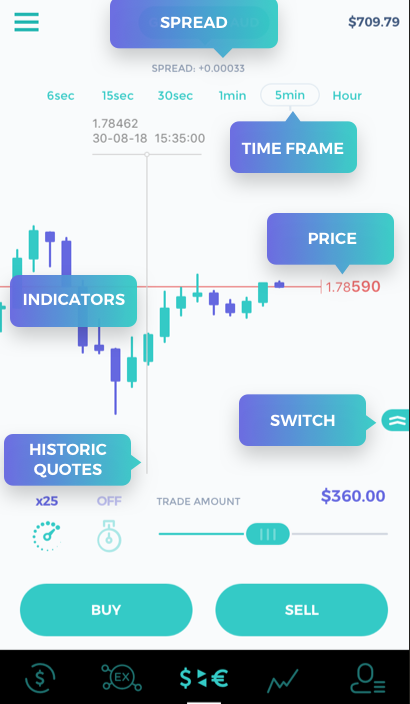
Hummingbird Trading’s chart offers you a real-time overview of the currency pair you want to trade, and contains the functionalities you will need to make a decision:
- SPREAD: difference between the Buy and Sell price.
- TIME FRAME: change the time frame in which the chart displays data.
- PRICE: current sell price.
- INDICATORS: add & remove indicators by tapping on the chart.
- SWITCH: switch between a line chart and a candlestick chart by swiping up or down.
- HISTORIC QUOTES: hold on the lower part of the chart to view historic prices and time stamps
Step 3: Adding a multiplier
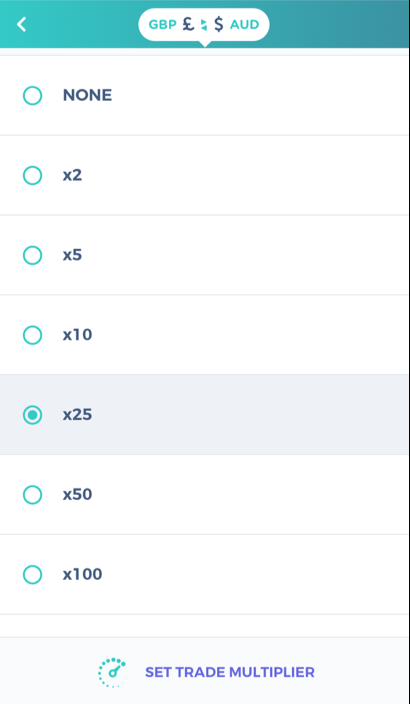
Leverage (aka trade multiplier) is the use of borrowed capital to increase the size of your position. Hummingbird Trading allows you to easily add leverage to your trades.
Open the Multiplier screen by tapping on the speedometer icon on the Trade Creation screen. This will open the trade multiplier. Trade multipliers range from x1 (1:1) to x500 (500:1), depending upon your trader profile, your region, broker, and the currency pair being traded.
How does it work exactly? Let’s say you place a trade of $100 dollars with a multiplier of x50. This means that you will actually be trading $5000 ($100 of your own money and $4900 of borrowed capital). Using the trade multiplier, therefore, means that you can generate larger profits with a smaller investment. However, keep in mind that this works two ways: the higher the leverage the greater the risk!
Step 4: Set a stop loss, take profit or price alert
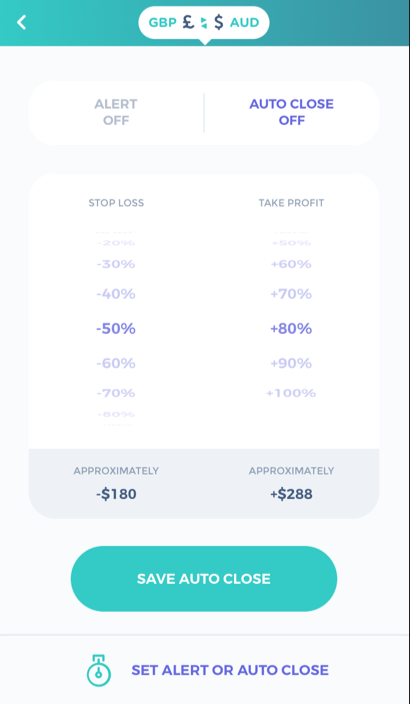
Never start a trade without turning on a stop loss or an alert. Doing so helps you to better manage risk and prevents you from losing too much.
Hummingbird Trading makes this very easy using the Alerts/Auto-Close feature. You can set a stop loss, take profit amount or a profit/loss alert with just a few taps.
To do so, tap on the stopwatch icon on the Trade Creation screen. You will be taken to the Alerts/Auto-Close screen.
Step 5: Choosing a trade amount
Hummingbird Trading takes a slightly different approach to trading than most forex apps. Rather than forcing you to place trades in the form of lots, we allow you to select how much of your available balance you want to place into the trade. Doing so gives you a clearer picture of how much of your money you are risking on a single trade.
To enter the trade amount, simply adjust the slider bar on the Trade Creation screen.
Step 6: Buy or Sell
Once you have configured your trade, it is time to make a decision. Like with any trade, we offer two choices:
- BUY: means that you expect the exchange rate to rise (long position),
- SELL: means that you expect the exchange rate to fall (short position).
Tap your choice to launch your trade.
Managing an active trade
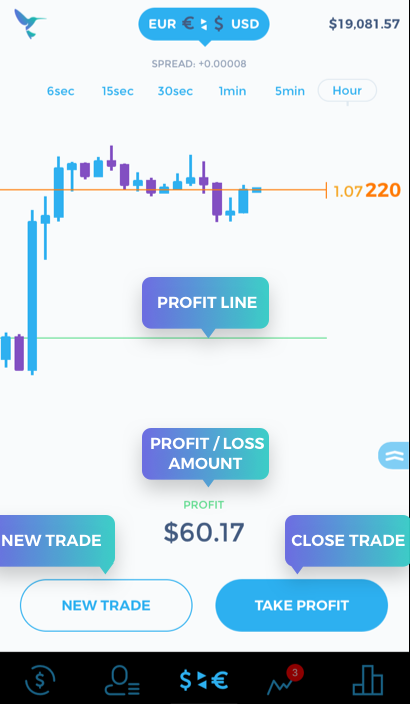
Once you launch a trade it becomes active and you are taken to the Active Trade screen. This screen is similar to the Trade Creation screen in that it contains a real-time chart; however, you are no longer able to modify the trade’s configuration.
Here are the key features:
- PROFIT LINE: point at which your trade will become profitable,
- PROFIT / LOSS AMOUNT: real-time profit and loss,
- NEW TRADE: create a new an additional trade,
- CLOSE TRADE: close your trade with a single tap.
Managing Multiple Trades
All your active trades on one screen
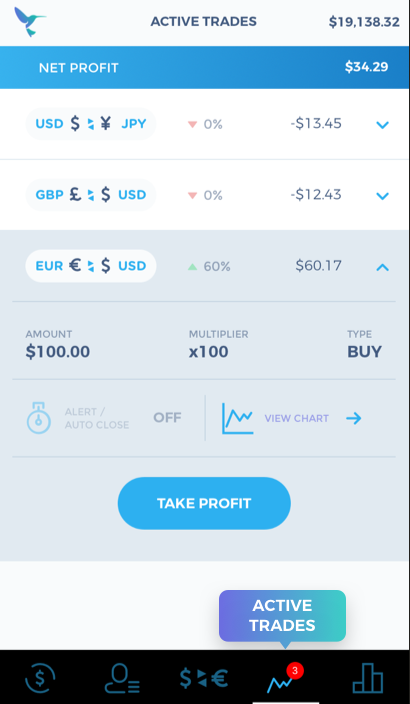
Hummingbird Trading allows you to manage multiple trades at the same time. To see your open positions, simply tap on the “Active Trades” menu in the tab bar and you will be taken to the Active Trades screen.
Here you will find a list of all open trades. By selecting the trade you will see additional details, including the option to close the trade, view the Active Trade chart, or modify the stop loss, alerts and take profit configurations.